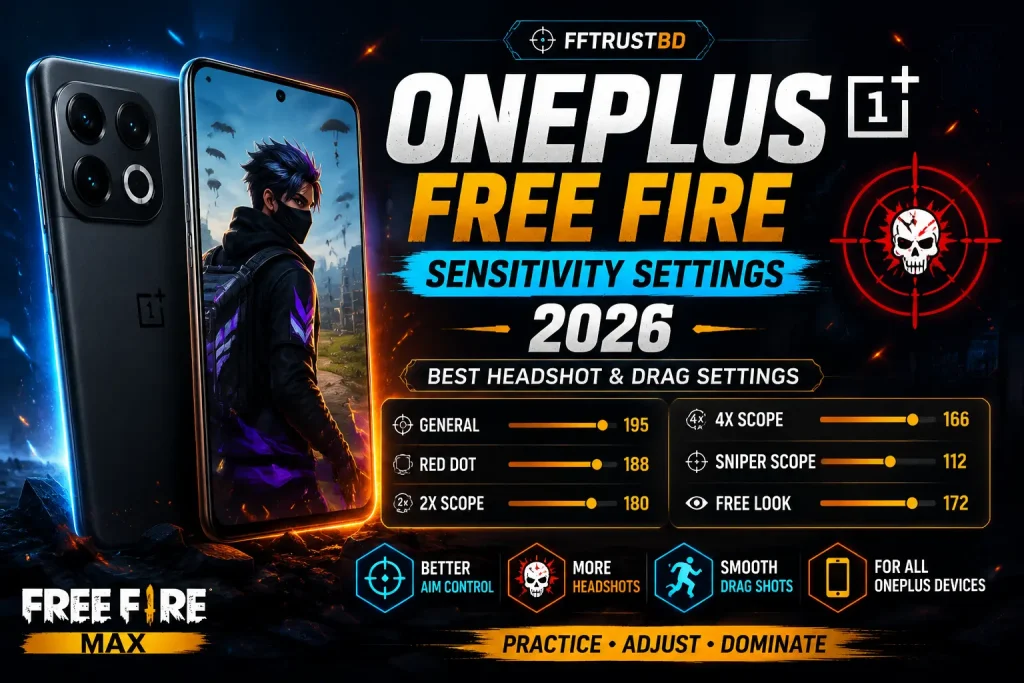
OnePlus Free Fire Sensitivity Settings 2026 (0-200 Scale) | Headshot Settings Guide

Before You Copy Any OnePlus Free Fire Sensitivity Settings, Ask Yourself:
Every OnePlus player has a different gameplay style, so copying someone else’s sensitivity may not always give the best result. Learn how to find and adjust the right Free Fire sensitivity settings for your own device and improve your control.
- Are you copying another player’s sensitivity but still not getting the same result?
- Why does the same sensitivity feel different on your OnePlus phone?
- Are you changing your sensitivity again and again without knowing the actual problem?
Finding the right Free Fire sensitivity can be difficult because the same settings may feel different for every player. Many players keep changing their values without first identifying whether their aim is too fast, too slow, or unstable.
Use the OnePlus Free Fire Sensitivity Finder below to get a balanced starting setup for your device and gameplay style. Test the recommended values and make small adjustments based on how your aim responds.
Instead of blindly copying someone else’s settings, it is better to start with a balanced setup and adjust it according to your own gameplay. That is why we created this OnePlus Free Fire Sensitivity Finder, so you can get a starting point and customize it until it feels right for you.
Find a recommended sensitivity setup for your OnePlus device.
Select your phone model and create a starting sensitivity based on your gameplay style.
🔴 OnePlus Free Fire Sensitivity Finder
Find your recommended Free Fire sensitivity for your OnePlus device
Analyzing your device…
Why You Should Not Copy Another Player’s Free Fire Sensitivity Settings
Copying another player’s sensitivity does not guarantee the same result. Differences in device performance, HUD layout, finger movement and gameplay style can make the same settings feel completely different. Use other players’ settings only as a starting point, then adjust them according to your own control.
How To Create Your Own OnePlus Free Fire Sensitivity Settings
Start with the recommended settings for your OnePlus model and test them in Training Ground. Play a few matches before making changes, and adjust only one setting at a time in small steps of 3–5 points.
If your drag stops near the enemy’s chest:
Your sensitivity may be too low. Try increasing General sensitivity slowly.
If your aim goes above the enemy’s head:
Your sensitivity may be too high. Reduce General sensitivity little by little.
If your Red Dot aim feels shaky or difficult to control:
Adjust Red Dot sensitivity until your close-range fights feel smoother.
If your scope movement feels too fast or too slow:
Make small changes to 2x Scope, 4x Scope and Sniper Scope settings instead of changing everything at once.
Remember, a good sensitivity is not the same for every player. Test, adjust, and find the settings that feel natural for your own gameplay.
How To Apply OnePlus Free Fire Sensitivity Settings
After finding a sensitivity that matches your OnePlus device, the next step is to apply it properly inside Free Fire.
Changing the numbers is easy, but using the right settings in the right place is important. Follow these simple steps:
Step 1: Open Free Fire Settings
First, open Free Fire and tap on the Settings icon from the top-right corner of the screen.
Step 2: Go To Sensitivity Settings
Inside the settings menu, open the Sensitivity section.
Here you will see different options:
- General
- Red Dot
- 2x Scope
- 4x Scope
- Sniper Scope
- Free Look
Step 3: Add Your Sensitivity Values
Now replace your current settings with the recommended values.
For example:
- General: 200
- Red Dot: 190
- 2x Scope: 180
- 4x Scope: 170
- Sniper Scope: 100
- Free Look: 200
Step 4: Test Your New Settings
Do not judge a sensitivity after playing only one match. Give yourself some time to understand how the new settings feel.
Try testing in:
- Training Ground
- Close-range fights
- Drag shots
- Different weapons
If something feels too fast or too slow, make small changes instead of changing everything at once.
Step 5: Keep The Settings That Feel Natural
Once you find a sensitivity that feels comfortable, keep practicing with it.
Remember, the best sensitivity is not always the one used by another player. The best setting is the one that gives you better control with your own gameplay style.
OnePlus Free Fire Sensitivity Settings 2026
OnePlus has different devices with different performance and display response. The sensitivity that feels good on one model may not feel the same on another. Below are recommended starting settings for popular OnePlus devices.
OnePlus Nord CE 5G Free Fire Sensitivity Settings
OnePlus Nord CE 5G is one of the devices that many Free Fire players search for when looking for a comfortable sensitivity setup. Because every player has a different control style, these settings should be used as a starting point and adjusted according to your own gameplay.
Recommended settings:
| Setting | Value |
|---|---|
| General | 200 |
| Red Dot | 190 |
| 2x Scope | 180 |
| 4x Scope | 170 |
| Sniper Scope | 100 |
| Free Look | 200 |
OnePlus Nord 4 Free Fire Sensitivity Settings
OnePlus Nord 4 users often look for smoother drag control and better aim response while playing Free Fire. The right sensitivity depends on your movement, HUD setup and personal comfort, so try these settings and fine-tune them if needed.
Recommended settings:
| Setting | Value |
|---|---|
| General | 195 |
| Red Dot | 185 |
| 2x Scope | 160 |
| 4x Scope | 170 |
| Sniper Scope | 90 |
| Free Look | 200 |
OnePlus 11R Free Fire Sensitivity Settings
OnePlus 11R offers strong performance for gaming, but sensitivity still depends on how you control the game. A setting that works for one player may feel different for another, so use these values as a balanced starting point.
Recommended settings:
| Setting | Value |
|---|---|
| General | 190 |
| Red Dot | 175 |
| 2x Scope | 180 |
| 4x Scope | 170 |
| Sniper Scope | 100 |
| Free Look | 180 |
OnePlus Nord CE 3 Lite Free Fire Sensitivity Settings
OnePlus Nord CE 3 Lite can provide a good Free Fire experience with the right settings. These recommended values are designed as a starting setup for better control and smoother gameplay.
Recommended settings:
| Setting | Value |
|---|---|
| General | 195 |
| Red Dot | 185 |
| 2x Scope | 175 |
| 4x Scope | 165 |
| Sniper Scope | 95 |
| Free Look | 200 |
OnePlus 12R Free Fire Sensitivity Settings
OnePlus 12R users may prefer a faster and smoother sensitivity response because of the device performance. However, the best result comes from adjusting settings based on your own gameplay style.
Recommended settings:
| Setting | Value |
|---|---|
| General | 188 |
| Red Dot | 195 |
| 2x Scope | 190 |
| 4x Scope | 175 |
| Sniper Scope | 100 |
| Free Look | 185 |
Best Free Fire Sensitivity Settings For Different Play Styles
Everyone does not play Free Fire in the same way. Some players like rushing enemies, some prefer balanced gameplay, and some enjoy long-range fights. Because of this, the same sensitivity may not feel comfortable for everyone.
Your ideal sensitivity should match the way you play.
Rush Players (Close-Range Fighters)
If you are the type of player who likes pushing enemies and taking close-range fights, you usually need a faster response from your sensitivity.
A higher sensitivity can help you move your aim quickly during fights.
Focus on:
- Higher General sensitivity
- Faster Red Dot response
- Comfortable fire button size
This can help with:
- Faster drag shots
- Quick aim movement
- Better control during close fights
However, do not increase everything too much. Your aim should still feel stable.
Balanced Players
If you enjoy both close-range and long-range fights, a balanced sensitivity setup is usually a better choice.
You need enough speed for movement but also enough control for accurate shots.
Focus on:
- Balanced General sensitivity
- Smooth Red Dot control
- Comfortable scope movement
This type of setup works well for players who want a mix of speed and accuracy.
Sniper Players
Sniper players usually need more control because small movements can affect accuracy.
Instead of using very high sensitivity, focus on smooth and stable aiming.
Focus on:
- Controlled scope movement
- Stable aim
- Smooth tracking
Very high sensitivity can make long-range shots harder, so adjust slowly until the scope movement feels comfortable.
How To Improve Your Aim After Changing Sensitivity
Changing your sensitivity settings is only the first step. Your hand also needs time to adjust to the new movement.
After changing settings, spend some time practicing:
- Drag shots in Training Ground
- Close-range fights
- Different weapons
- Movement while aiming
Do not change your sensitivity after every match. Give yourself enough time to understand the new settings and improve your control.
Remember, the best sensitivity is not always the highest one — it is the one that feels natural for your own gameplay.
FFTrustBD Team Experience With Free Fire Sensitivity Settings
While working on different Free Fire sensitivity setups, we noticed one common thing — copying another player’s settings does not always give the same result.
Many players use a sensitivity from YouTube or other players and expect the same headshot performance. But after applying it, the aim may feel too fast, too slow, or simply uncomfortable.
The reason is simple. Every player has a different device, finger movement, HUD setup and way of playing. Even on OnePlus phones, the same sensitivity can feel different depending on the model and personal control style.
During our testing, we focused on finding settings that feel balanced and comfortable for different types of gameplay, including:
- Better drag control
- Smoother aim movement
- More comfortable close-range fights
- Better scope handling
We also noticed that many players keep changing sensitivity after every few matches. This makes it difficult to understand which setting actually works for them.
Our advice is simple — start with a recommended setup, play with it for some time, and make small changes until it feels natural for your own hand.
Remember, the best sensitivity is not always the highest number. The best sensitivity is the one that gives you better control and confidence during your gameplay.
— FFTrustBD Team
Need Help With Your OnePlus Free Fire Sensitivity Settings?
Still confused about finding the right OnePlus Free Fire Sensitivity Settings for your device? Let us know your problem in the comments, and we will try to help you find a better setup.
Share your details:
- Your OnePlus device model
- Current Free Fire sensitivity settings
- Your gameplay style (Rush, Balanced, or Sniper)
- Your problem (drag control, aim, Red Dot, or scope movement)
Our team will check your information and try to suggest a better Free Fire sensitivity setup based on your device and gameplay style.
Frequently Asked Questions (FAQ)
What is the best OnePlus Free Fire Sensitivity Settings?
There is no single sensitivity setting that works perfectly for every player. The best settings depend on your OnePlus device, HUD layout, finger movement and gameplay style.
A setting that feels perfect for one player may not feel the same for another player. Use recommended settings as a starting point and adjust them according to your comfort.
Should I copy a pro player’s Free Fire sensitivity settings?
Pro player settings can give you an idea, but copying them exactly does not guarantee the same result.
Every player has a different device, hand movement and control style. It is better to use them as a reference and create a setup that feels comfortable for you.
Why does my aim feel different after changing sensitivity?
Your aim can change because of different factors, including:
• Device performance
• FPS stability
• Phone temperature
• HUD layout
• Finger movement
• Practice time
Give yourself some time to adjust before changing the settings again.
How often should I change my Free Fire sensitivity?
Avoid changing your sensitivity after every match. Frequent changes can make it difficult to understand which setting actually works for you.
Try a setup for a few matches, notice the problems, and make small adjustments when needed.
Can I use OnePlus Free Fire Sensitivity Settings on other phones?
These settings are mainly created for OnePlus devices. Other brands like Samsung, Redmi, Realme, Vivo or iPhone may feel different because of hardware and touch response differences.
For the best result, adjust sensitivity according to your own device.


Nice
Thank you
OnePlus Free Fire Sensitivity
General:200
Red Dot:190
2x Scope:180
4x Scope:170
Sniper:100
Free Look:200
Generated by FFTrustBD.com
One plus Nord n20 SE best senc
Ff