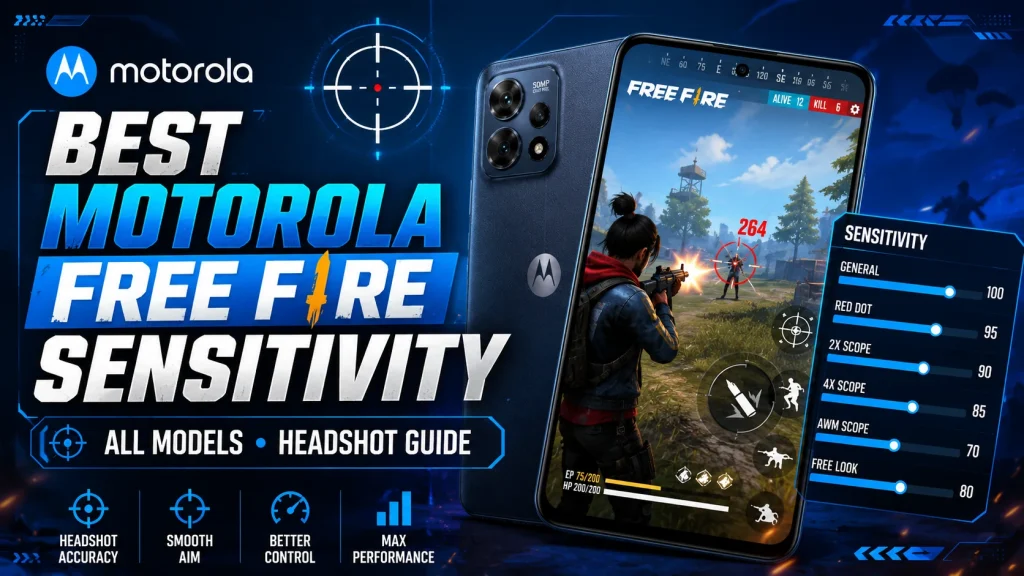
Best Motorola Free Fire Sensitivity Settings 2026 – All Models Headshot Guide

Why does my aim go above the enemy’s head?
If your aim moves above the enemy’s head while dragging, your Motorola Free Fire sensitivity may be too high. Reduce the General or Red Dot sensitivity by 5–10 points, then test the new settings in Training Ground to find the best balance.
Why is my drag headshot not reaching the head?
If your crosshair stays around the enemy’s chest or neck, your Motorola Free Fire sensitivity headshot settings may be too low. Increase the General and Red Dot sensitivity by 5 points and slightly increase the fire button size for smoother drag headshots.
Why does my scope shake while aiming?
Scope shaking usually happens when the 2X, 4X, or Sniper sensitivity is set too high. Lower the affected scope sensitivity by 5–10 points and use Smooth graphics if your phone is lagging. These adjustments can help you find the best Free Fire sensitivity settings for Motorola devices.
Best Motorola Free Fire Sensitivity at a Glance
For most Motorola phones, a good starting point is General 185–195, Red Dot 175–190, 2X Scope 160–180, 4X Scope 145–165, and a 48–55% fire button.
The ideal sensitivity is not exactly the same for every Motorola model. Screen refresh rate, touch response, RAM, game version, and playing style can affect aiming performance. Use the sensitivity finder below to get recommended settings for your device, then fine-tune them in Training Ground.
Motorola Free Fire Sensitivity Finder by FFTrustBD
Search your Moto device and create a recommended Free Fire or Free Fire MAX sensitivity profile.
Type any Motorola model name. New models can use a custom profile.
Advanced settings
Search and select a Motorola device first.
How to Use the Motorola Free Fire Sensitivity Finder
This finder gives you a solid starting setup based on your Motorola phone and the way you play. Don’t copy the numbers and jump straight into ranked. Set everything up, test it properly, then make small changes until the aim feels right in your hand.
1. Search for Your Motorola Phone
Start by typing your phone model into the search box. You don’t need to type the full name—short searches like G85, G45, Edge 60, or Edge 50 Fusion will work.
When your device appears, tap the correct model.
Using a new Motorola phone that is not listed yet? Choose the custom profile option and enter your RAM, refresh rate, and other device details.
2. Choose Your Game Version
Select the game you actually play:
- Free Fire
- Free Fire MAX
Free Fire MAX can feel heavier on some phones, especially when the graphics and FPS are high. Choosing the correct version helps the finder create a more suitable setup.
3. Pick Your Actual Play Style
Choose the style you normally use in matches—not the one that simply sounds the most powerful.
- One-Tap Headshot: Best for quick single-tap shots with weapons such as the Desert Eagle and Woodpecker.
- Drag Headshot: For players who place the crosshair around the chest and drag the fire button upward.
- Close Range: Made for fast fights with shotguns, SMGs, and aggressive movement.
- Long Range: Better for controlled scope movement and steady aim from a distance.
- Balanced Gameplay: A safe choice for players who switch between close-, mid-, and long-range fights.
Be honest with your selection. Picking One-Tap will not automatically turn every shot into a headshot.
4. Check the Advanced Settings
Open the advanced section and enter the correct information about your phone:
- RAM
- Refresh rate
- Graphics mode
- Screen protector
- FPS setting
You can usually find your RAM and device information here:
Settings → About Phone
Refresh-rate settings are normally located here:
Settings → Display → Refresh Rate
Correct device information helps create a profile that feels more natural on your screen.
5. Generate Your Sensitivity
Tap Find My Sensitivity and wait about five seconds.
The result will include:
General
Red Dot
2X Scope
4X Scope
Sniper Scope
Fire Button Size
Free Look
Take a screenshot or copy the values before opening the game.
6. Apply the Settings in Free Fire
Open Free Fire and go to:
Settings → Sensitivity
Enter each generated value carefully.
After that, open the Custom HUD section and adjust the fire button size shown in your result. Make sure the button is placed where your thumb can drag comfortably.
7. Test Everything in Training Ground
Don’t take a fresh sensitivity setup straight into a ranked match. Spend at least five minutes testing it in Training Ground.
Try the following:
- Place the crosshair around the chest and drag toward the head.
- Test Red Dot and 2X Scope with your regular weapons.
- Check shotgun movement in close-range fights.
- Use 4X and Sniper scopes to see whether the aim shakes.
- Fire several shots before deciding whether the setup is good or bad.
One missed shot does not mean the sensitivity is wrong.
8. Fine-Tune It Like a Real Player
The generated profile is your starting point. After testing, use the Adjustment Assistant to fix the exact problem you are facing.
Aim goes above the enemy’s head:
Lower General and Red Dot by 5 points.
Crosshair stays around the chest or neck:
Raise General and Red Dot by 5 points.
Scope shakes while aiming:
Lower the affected 2X, 4X, or Sniper sensitivity by 5–10 points.
Drag feels too slow:
Raise General by 5 points or make the fire button slightly larger.
Phone feels laggy:
Switch to Smooth graphics, close background apps, and reduce scope sensitivity slightly.
Change only one or two settings at a time. If you change everything together, you won’t know which adjustment improved your aim.
Gamer Tip: Keep the same setup for at least two or three practice sessions. Changing sensitivity after every missed shot will ruin your muscle memory and make your aim less consistent.
Important Note
The Motorola Free Fire Sensitivity Finder gives you recommended starting settings, not guaranteed headshots. Your finger speed, HUD layout, screen protector, FPS stability, touch response, and practice level will always affect the final result.
The table below shows recommended Free Fire sensitivity settings for popular Motorola phones. These values match the profiles used in the Motorola Free Fire Sensitivity Finder above, so you can quickly compare your device with other models.
Use these settings as a starting point. Your screen protector, FPS, touch response, and playing style may require small adjustments after testing in Training Ground.
Swipe left or right to view the complete sensitivity table on mobile.
| Motorola Model | General | Red Dot | 2X Scope | 4X Scope | Sniper | Free Look | Fire Button |
|---|---|---|---|---|---|---|---|
| Motorola Edge 60 Fusion | 195 | 188 | 178 | 165 | 108 | 190 | 50% |
| Motorola Edge 60 Pro | 194 | 186 | 176 | 163 | 106 | 189 | 49% |
| Motorola Edge 50 Fusion | 192 | 184 | 174 | 160 | 103 | 187 | 50% |
| Motorola Edge 50 Pro | 191 | 183 | 173 | 159 | 102 | 186 | 49% |
| Motorola Moto G96 5G | 195 | 186 | 176 | 162 | 104 | 190 | 51% |
| Motorola Moto G85 5G | 195 | 185 | 175 | 160 | 100 | 190 | 52% |
| Motorola Moto G64 5G | 191 | 182 | 171 | 157 | 98 | 186 | 52% |
| Motorola Moto G45 5G | 190 | 180 | 170 | 155 | 95 | 185 | 52% |
| Motorola Moto G35 5G | 188 | 178 | 168 | 152 | 93 | 182 | 53% |
| Motorola Moto G34 5G | 188 | 178 | 167 | 151 | 92 | 182 | 53% |
| Motorola Moto G32 | 186 | 176 | 165 | 149 | 90 | 180 | 54% |
| Motorola Moto E13 | 183 | 173 | 160 | 144 | 88 | 176 | 55% |
Note: The values in this table are for Balanced Gameplay. Selecting One-Tap, Drag Headshot, Free Fire MAX, or different advanced options in the finder may slightly change the final result.
Motorola Edge 60 Fusion Free Fire Sensitivity
Device snapshot: 6.67-inch 1.5K pOLED display | 120Hz refresh rate | Up to 300Hz touch sampling rate in gaming mode
The Edge 60 Fusion reacts quickly when you pull the fire button upward, so an overly aggressive sensitivity can easily send the crosshair past the enemy’s head. Begin with the profile shown by the finder and spend a few minutes checking hip-fire, Red Dot, and 2X Scope separately.
Players who rush with SMGs or shotguns should pay the most attention to General sensitivity. When the movement feels wild, lower General by 5 points before touching any scope value. If the crosshair struggles to move beyond the chest, raise General slightly and keep Red Dot close to the generated result.
Recommended for: Fast rushes, short drag shots, and Red Dot combat.
Match advice: When the phone starts heating during Free Fire MAX, lower the graphics quality first. Changing sensitivity while the frame rate is unstable will not solve the real problem.
Motorola Edge 50 Fusion Free Fire Sensitivity
Device snapshot: 6.7-inch pOLED display | 144Hz refresh rate | Up to 360Hz touch sampling rate in gaming mode
The Edge 50 Fusion has a very fluid screen, which makes camera movement feel lighter than it does on many 60Hz phones. Because of that, pushing the values too high may make the first drag feel fast but reduce accuracy during repeated shots.
Try the generated setup with one shotgun, one SMG, and one mid-range weapon. If your first bullet reaches the head but the next shots move away from the target, bring Red Dot down a little. When the upward pull feels weak, increase General in small steps instead of increasing every scope together.
Suitable for: Players who switch between close-range rushing and controlled mid-range fights.
HUD advice: Keep the fire button where your thumb can pull upward naturally. A good button position often improves dragging more than an extra 10 sensitivity points.
Motorola G85 5G Free Fire Sensitivity
Device snapshot: 6.67-inch FHD+ pOLED display | 120Hz refresh rate
The Moto G85 offers smooth movement, but the final control still depends heavily on your thumb speed and HUD placement. A fast player may find the default profile comfortable, while a slower drag player may need a slightly larger fire button.
Use your regular loadout during testing instead of choosing random guns. Fire several rounds with the MP40, UMP, Desert Eagle, or the weapons you actually carry in ranked matches. When shots keep landing around the neck, add 5 points to General. When the aim repeatedly crosses the top of the head, reduce General and Red Dot together.
Ideal use: Drag-headshot practice, close-range pressure, and mixed weapon gameplay.
Practice reminder: Do not judge the setup after two or three bullets. Give your hand enough time to learn the movement before making another change.
Motorola G45 5G Free Fire Sensitivity
Device snapshot: 6.5-inch HD+ LCD display | 120Hz refresh rate
The Moto G45 can provide smooth screen movement, but stable control matters more than extreme speed on this device. Very high values may make quick turns easier while making it harder to stop the crosshair at the correct height.
Begin with General and Red Dot, then test 2X Scope only after your basic drag feels comfortable. If the movement feels slow, raise General by 5 points and repeat the same drill. When the aim becomes difficult to hold, move the value back down instead of changing your entire sensitivity page.
Works well for: Shotgun fights, SMG rushing, casual ranked matches, and new drag players.
Performance advice: Use Smooth graphics when frame drops appear. A stable frame rate gives more consistent drag timing than a high visual setting.
Motorola G64 5G Free Fire Sensitivity
Device snapshot: 6.5-inch FHD+ IPS LCD display | 120Hz refresh rate
The Moto G64 is better suited to a steady, repeatable setup than a wildly fast profile. During longer sessions, heat and changing performance can affect how the same sensitivity feels, so consistency should be your main target.
Apply the finder result and practise with two or three familiar weapons. If body shots are common, raise General and Red Dot in small amounts. When only the 4X Scope feels shaky, adjust that scope alone—there is no reason to disturb your close-range setup.
Good choice for: Balanced players, controlled drag shots, and gamers who regularly use scopes.
Session tip: Test the profile while the phone is cool and again after a longer match. This helps you understand whether the issue comes from sensitivity or device performance.
Motorola G96 5G Free Fire Sensitivity
Device snapshot: 6.67-inch curved pOLED display | Up to 144Hz refresh rate | Up to 300Hz touch sampling rate
The Moto G96 responds very quickly to finger movement, which is useful for short drag shots and fast target switching. Still, maximum sensitivity is not automatically the best option. The goal is to reach the head and stop there—not simply move the camera as fast as possible.
Check close-range movement first, then test Red Dot, 2X, and 4X Scope one by one. If scoped aiming looks nervous or keeps drifting, lower only that particular scope by 5–10 points. When hip-fire movement feels too sharp, reduce General before changing the fire button.
Made for: Quick headshot attempts, fast target switching, and close-to-mid-range gameplay.
Extra advice: Turn off Battery Saver during testing. Power-saving modes can reduce smoothness and make the same sensitivity feel different from one match to another.
How the FFTrustBD Team Tested These Settings
The FFTrustBD team tested these Motorola Free Fire sensitivity profiles with different weapons, scopes, play styles, and display refresh rates. We checked how each setup felt during drag headshots, close-range rushes, Red Dot fights, and scoped aiming.
During testing, we noticed that phones with faster displays, such as the Edge 50 Fusion and Moto G96, usually felt better with a controlled sensitivity instead of pushing every value to the maximum. On models such as the Moto G45 and Moto G64, stable FPS and a comfortable fire-button position made a noticeable difference during longer matches.
We tested General and Red Dot first because they affect most close-range and drag-headshot situations. After that, we adjusted 2X, 4X, and Sniper sensitivity separately whenever a scope felt shaky or difficult to control.
The values shared in this guide are the starting points that gave our team the most balanced result. However, every player has a different thumb speed, HUD layout, screen protector, and dragging style. That is why we recommend testing the profile in Training Ground and changing only 5 points at a time.
FFTrustBD Team Tip: A good sensitivity is not simply the fastest one. It should help the crosshair reach the enemy’s head and stop there without losing control.
Testing Note: Our team tested these profiles as practical gameplay settings. Results may still feel slightly different depending on FPS stability, device temperature, game updates, and individual playing habits.
Common Motorola Free Fire Sensitivity Problems and Quick Fixes
Aim Goes Above the Enemy’s Head
This usually means your General or Red Dot sensitivity is too high for your drag speed. Lower both values by 5 points, then test again with the same weapon and fire-button position.
Crosshair Stays Around the Chest
When the aim does not reach the head, increase General and Red Dot by 5 points. If the upward drag still feels short, make the fire button slightly larger and place it where your thumb can move freely.
Scope Feels Shaky
Do not change the full sensitivity profile when only one scope feels unstable. Reduce the affected 2X, 4X, or Sniper value by 5–10 points and check it again from the same distance.
Drag Headshot Feels Too Slow
Raise General by 5 points first. A slightly larger fire button can also make the upward pull easier, but avoid making it so large that you fire accidentally while moving.
Sensitivity Feels Different After Playing for a While
Phone temperature and unstable FPS can change how the same settings feel. Close background apps, turn off Battery Saver, and use Smooth graphics before changing your sensitivity again.
Free Fire MAX Feels Heavier Than Free Fire
Free Fire MAX may put more pressure on the phone during long sessions. Use Smooth graphics and test a slightly lower General and Red Dot value if movement feels delayed.
One-Tap Shots Are Not Working
One-Tap mode does not guarantee automatic headshots. Keep the crosshair close to the upper chest or neck, use a comfortable fire-button position, and practise your timing with weapons such as the Desert Eagle or Woodpecker.
FFTrustBD Gamer Advice: Fix one problem at a time. Changing General, Red Dot, scopes, HUD, and fire-button size together will make it impossible to understand which setting actually improved your aim.
Frequently Asked Questions
What is the best Motorola Free Fire sensitivity?
There is no single sensitivity that works perfectly on every Motorola phone. Start with the profile generated by the finder, test it in Training Ground, and adjust General and Red Dot by 5 points based on your drag speed.
Which sensitivity is best for drag headshots on Motorola phones?
A responsive General setting, controlled Red Dot sensitivity, and a comfortable fire-button size usually work best for drag headshots. The exact values depend on your model, refresh rate, FPS stability, and thumb movement.
Is maximum sensitivity good for Free Fire?
Not always. Maximum sensitivity may make the camera move quickly, but it can also push the crosshair above the enemy’s head. A slightly controlled setup is often easier to repeat during real matches.
Why does the same sensitivity feel different on two Motorola phones?
Display refresh rate, touch response, screen size, FPS, processor performance, screen protector, and device temperature can change how the same sensitivity feels from one phone to another.
Should I use different settings for Free Fire MAX?
You may need small adjustments if Free Fire MAX feels heavier or less stable on your phone. Try Smooth graphics first, then reduce General or Red Dot slightly only when movement still feels delayed.
What fire-button size is best for headshots?
A fire-button size around 48–55% is a practical starting range for many players. Use a size that allows your thumb to drag upward naturally without causing accidental shots.
How long should I test a new sensitivity?
Spend at least five minutes in Training Ground and use the setup for two or three practice sessions. Do not replace the full profile after one missed headshot or one bad match.
Does a 120Hz or 144Hz display improve headshots?
A higher refresh rate can make movement look smoother and feel more responsive, but it does not guarantee headshots. Good FPS stability, HUD placement, drag timing, and regular practice are still important.
Can sensitivity settings guarantee one-tap headshots?
No sensitivity profile can guarantee automatic headshots. The settings only provide a starting point for better control. Your crosshair placement, timing, weapon choice, finger movement, and practice determine the final result.
What should I do if my Motorola model is not listed?
Use the custom profile option in the finder. Enter your phone’s RAM, refresh rate, graphics mode, game version, and play style to receive a starting setup for the new or unlisted Motorola device.
Why do I see red damage numbers but not get a headshot?
A red damage number confirms that the bullet hit the enemy, but it does not always mean the shot landed on the head. Keep the crosshair around the upper chest or neck before dragging. If the aim passes over the head, reduce General and Red Dot by 5 points and shorten your upward drag.
Why does my Motorola sensitivity feel slow after a Free Fire update?
A game update may change graphics performance, frame stability, or how the controls feel on your phone. Restart the device, turn off Battery Saver, check the FPS option, and test the same profile in Training Ground. Increase General by only 5 points if the movement still feels slow.
Why does recoil increase during drag or rotation drag?
Long or aggressive dragging can pull the crosshair away from the target while the weapon recoil is active. Use a shorter upward movement and test with the same gun several times. If the aim becomes difficult to control, reduce General or Red Dot by 5 points instead of changing every scope.
Final Verdict: Best Motorola Free Fire Sensitivity Settings
The best Motorola Free Fire sensitivity is not simply the highest possible number. A useful setup should let you move the crosshair quickly, reach the enemy’s head, and stop without losing control. That is why the Motorola Free Fire Sensitivity Finder gives a different starting profile based on the phone model, game version, play style, RAM, refresh rate, and graphics settings.
Whether you are looking for Motorola Free Fire sensitivity settings for drag headshots, one-tap shots, close-range fights, or balanced gameplay, test the generated profile with the weapons you actually use. Start with General and Red Dot, then adjust 2X, 4X, or Sniper only when a particular scope causes trouble.
Players using the Motorola Edge 60 Fusion, Edge 50 Fusion, Moto G85, Moto G45, Moto G64, or Moto G96 should avoid copying another player’s setup without testing it. Display response, FPS stability, HUD placement, screen protector, and thumb speed can make the same Free Fire sensitivity settings for Motorola phones feel completely different.
Use the generated values as a starting point, practise in Training Ground, and change only 5 points at a time. The best Motorola Free Fire headshot sensitivity is the setup that feels repeatable in real matches—not the one that looks fastest on paper.
FFTrustBD Final Advice: Save or screenshot your profile and use it for at least two or three practice sessions. Give your hand enough time to build muscle memory before making another major adjustment.


Motorola 85 free fire sensy headset
Hello bhai mere fifa sensitivity sex motorola g35 sensitivity
fifa sensitivity sex motorola g35 sensitivity
Moto g06
এর best sensitivity পেতে
লিংক ক্লিক করুন