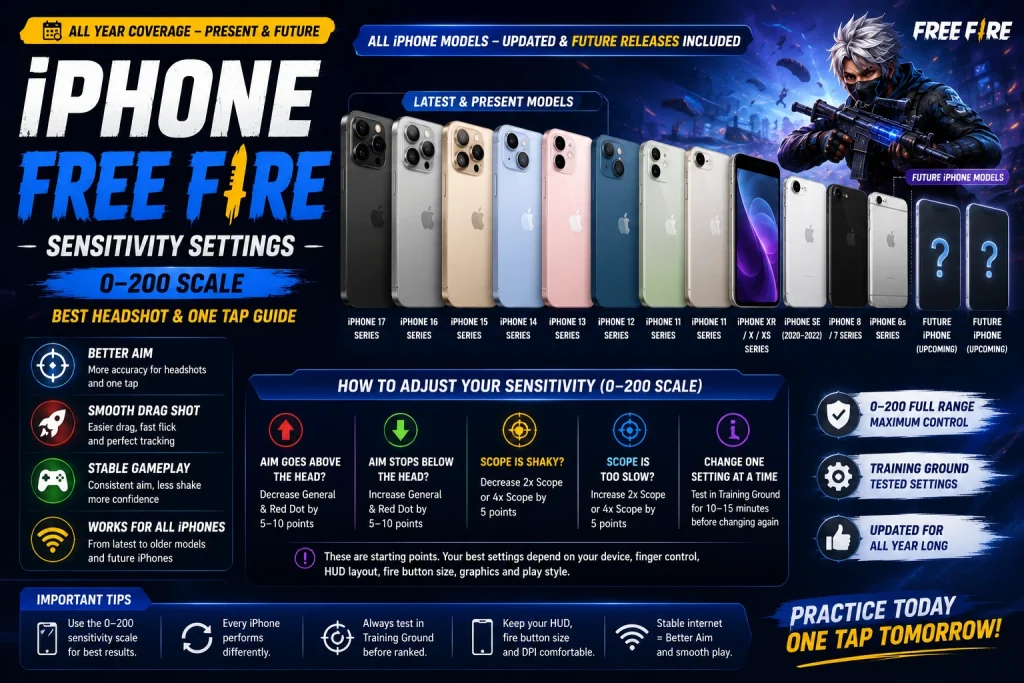
iPhone Free Fire Sensitivity Settings 2026 (0–200): Best Headshot & One Tap Guide

iPhone Free Fire Sensitivity Settings 2026: Best Headshot & One Tap Guide
Last reviewed: June 2026 • Covers iPhone 17 to iPhone 6s series
Looking for the best iPhone Free Fire sensitivity for headshots, one tap and drag shots? This guide gives you practical starting presets for current and older iPhone models on the 0–200 sensitivity scale. Use the table for your phone, test it in Training Ground, then make small changes based on your own finger control.
Quick Start: iPhone Free Fire Sensitivity 200
Start at the middle of the range, not at the maximum. For example, if a table says General 190–198, begin around 194 or 195. Play a few Training Ground rounds before changing anything. This gives your hand time to feel the drag distance instead of chasing a new setting after every match.
| iPhone group | General | Red Dot | 2x Scope | 4x Scope | Sniper Scope | Free Look |
|---|---|---|---|---|---|---|
| Newer iPhones: 17 / 16 / 15 | 192–200 | 186–198 | 176–192 | 162–182 | 100–135 | 160–190 |
| Balanced iPhones: 14 / 13 / 12 | 188–198 | 180–194 | 170–188 | 155–176 | 95–125 | 150–180 |
| Older stable iPhones: 11 / XR / X / XS | 182–194 | 172–188 | 160–180 | 145–168 | 85–115 | 140–170 |
| Older / compact iPhones: SE / 8 / 7 / 6s | 172–190 | 162–182 | 150–172 | 135–160 | 75–105 | 130–160 |
These are starting ranges for the 0–200 scale. Battery health, screen size, FPS, ping, HUD placement and how far you drag your thumb can all change the comfortable result.
What Happens When You Increase or Decrease Sensitivity?
This comparison table is useful when the first preset does not feel right. Change only one or two settings at a time. That way, you can tell what actually improved or hurt your aim.
| Setting | When you increase it | When you decrease it | Adjust it when… |
|---|---|---|---|
| General | Upward drag reaches the head faster; close-range movement feels quicker. | Drag becomes slower but easier to stop accurately. | Your drag stops below the head → increase 5–10. Your crosshair flies above the head → decrease 5–10. |
| Red Dot | Faster control in no-scope and red-dot fights, especially close range. | More control if your aim shakes while tracking. | SMG or shotgun fights feel slow → increase. Your red-dot aim vibrates or overshoots → decrease. |
| 2x Scope | Quicker mid-range target switching and faster drag under 2x. | More stable AR tracking at medium distance. | 2x cannot reach the target quickly → increase. 2x feels jumpy → decrease 5. |
| 4x Scope | Faster long-range screen movement, but can become hard to control. | Slower but steadier long-range aim. | You cannot track a moving player → increase slightly. Your 4x shakes at distance → decrease 5–10. |
| Sniper Scope | Faster flicks between targets. | More controlled precision when lining up a long shot. | Sniper movement feels heavy → increase 5. You miss because the scope moves too far → decrease 5. |
| Free Look | Faster camera checking and wider map awareness. | Slower camera movement with more control. | Use personal comfort here; it has less direct impact on headshot drag than General or Red Dot. |
iPhone 17, iPhone Air & iPhone 17e Free Fire Sensitivity Settings
The newest iPhone group can usually handle a fast, controlled setup when the phone is cool and the connection is stable. Keep General and Red Dot high for quick drag shots, but leave 4x and Sniper lower so long-range aim does not become too loose. The iPhone Air and iPhone 17e can start with the standard iPhone 17 row, then move down by 5 points if the aim feels too quick.
| Model | General | Red Dot | 2x | 4x | Sniper | Free Look |
|---|---|---|---|---|---|---|
| iPhone 17 Pro Max / 17 Pro | 196–200 | 190–198 | 182–194 | 170–184 | 110–135 | 170–190 |
| iPhone 17 | 194–200 | 188–196 | 180–192 | 168–182 | 105–130 | 165–185 |
| iPhone Air / iPhone 17e | 190–198 | 184–194 | 176–188 | 162–176 | 100–125 | 160–180 |
iPhone 16 / 16 Plus / 16 Pro / 16 Pro Max Sensitivity
For the iPhone 16 series, start with a high but not maxed General value. This lets you use short drags for close fights without making every swipe unpredictable. Pro and Pro Max users can test the higher end of the range; standard and Plus users should begin near the middle.
| Model | General | Red Dot | 2x | 4x | Sniper | Free Look |
|---|---|---|---|---|---|---|
| iPhone 16 Pro Max / 16 Pro | 194–200 | 188–198 | 180–192 | 168–182 | 108–132 | 168–188 |
| iPhone 16 / 16 Plus | 192–198 | 186–196 | 176–190 | 164–178 | 102–128 | 162–184 |
| iPhone 16e | 188–196 | 180–192 | 172–186 | 158–174 | 98–122 | 156–178 |
iPhone 15 / 15 Plus / 15 Pro / 15 Pro Max Sensitivity
The iPhone 15 family is a strong starting point for a balanced high-sensitivity setup. Use the higher values only if you already make short, controlled drags. If you are new to one-tap practice, keep Red Dot a little below General; this normally makes close-range tracking easier to control.
| Model | General | Red Dot | 2x | 4x | Sniper | Free Look |
|---|---|---|---|---|---|---|
| iPhone 15 Pro Max / 15 Pro | 192–198 | 186–196 | 178–190 | 165–180 | 105–128 | 165–185 |
| iPhone 15 / 15 Plus | 190–196 | 182–194 | 174–188 | 160–176 | 100–124 | 158–180 |
iPhone 14 / 14 Plus / 14 Pro / 14 Pro Max Sensitivity
For iPhone 14 Free Fire sensitivity settings, balance matters more than trying to force maximum speed. A high General value is useful for drag shots, but 2x and 4x should remain lower so that AR aim stays predictable at medium and long range.
| Model | General | Red Dot | 2x | 4x | Sniper | Free Look |
|---|---|---|---|---|---|---|
| iPhone 14 Pro Max / 14 Pro | 190–198 | 184–194 | 174–188 | 160–176 | 100–124 | 158–178 |
| iPhone 14 / 14 Plus | 188–196 | 180–192 | 170–184 | 156–172 | 96–120 | 152–174 |
iPhone 13 / 13 mini / 13 Pro / 13 Pro Max Sensitivity
iPhone 13 is still popular for Free Fire because it can feel responsive with a stable setup. The smaller iPhone 13 mini screen may feel faster under the same values, so start a few points lower than the standard iPhone 13 row. For headshot practice, focus on keeping General high enough to reach the head with a short drag, not a long swipe.
| Model | General | Red Dot | 2x | 4x | Sniper | Free Look |
|---|---|---|---|---|---|---|
| iPhone 13 Pro Max / 13 Pro | 190–196 | 182–194 | 172–186 | 158–174 | 98–122 | 154–176 |
| iPhone 13 | 188–194 | 180–190 | 168–182 | 154–170 | 94–118 | 148–170 |
| iPhone 13 mini | 184–192 | 176–188 | 164–178 | 150–166 | 90–114 | 144–166 |
iPhone 12 / 12 mini / 12 Pro / 12 Pro Max Sensitivity
Use a balanced setup on iPhone 12. It is tempting to keep every value high for one-tap shots, but mid-range scope control usually improves when 2x and 4x are kept clearly below General. If your device becomes warm after several matches, lower graphics first before rebuilding your sensitivity.
| Model | General | Red Dot | 2x | 4x | Sniper | Free Look |
|---|---|---|---|---|---|---|
| iPhone 12 Pro Max / 12 Pro | 188–196 | 180–192 | 170–184 | 156–172 | 94–118 | 150–172 |
| iPhone 12 | 186–194 | 178–190 | 166–180 | 152–168 | 90–114 | 146–168 |
| iPhone 12 mini | 182–190 | 172–186 | 160–176 | 146–162 | 86–110 | 140–162 |
iPhone 11 / 11 Pro / 11 Pro Max Sensitivity
For iPhone 11 Free Fire sensitivity, choose control over extreme speed. Clear background apps, keep enough free storage, and avoid playing while the phone is very hot. Those small steps can make touch response feel more consistent, which matters more than copying the highest possible sensitivity.
| Model | General | Red Dot | 2x | 4x | Sniper | Free Look |
|---|---|---|---|---|---|---|
| iPhone 11 Pro Max / 11 Pro | 184–194 | 176–188 | 164–180 | 150–168 | 88–112 | 142–168 |
| iPhone 11 | 182–192 | 172–186 | 160–176 | 146–164 | 84–108 | 138–164 |
iPhone XR / X / XS / XS Max Sensitivity
The XR, X and XS family can still use a high sensitivity style, but a medium-high range normally gives better repeatability than a maxed setup. The larger XR and XS Max displays may feel comfortable for drag shots; the iPhone X and XS may benefit from slightly calmer Red Dot values if your thumb movement is short.
| Model | General | Red Dot | 2x | 4x | Sniper | Free Look |
|---|---|---|---|---|---|---|
| iPhone XS Max | 182–192 | 174–186 | 162–178 | 148–166 | 84–108 | 138–164 |
| iPhone XR / iPhone XS | 180–190 | 170–184 | 158–174 | 144–162 | 80–104 | 134–160 |
| iPhone X | 178–188 | 168–182 | 156–172 | 142–160 | 78–102 | 130–156 |
iPhone SE 2020 / iPhone SE 2022 Sensitivity
Compact iPhone SE models have smaller displays, so identical values can feel faster than they do on a Plus or Max model. Start lower, keep your fire button comfortable, and make short controlled drags. The goal is not to copy a large-screen player’s movement—it is to find a setting that fits your display and grip.
| Model | General | Red Dot | 2x | 4x | Sniper | Free Look |
|---|---|---|---|---|---|---|
| iPhone SE (3rd generation, 2022) | 178–188 | 168–182 | 156–172 | 142–160 | 78–102 | 130–156 |
| iPhone SE (2nd generation, 2020) | 174–184 | 164–178 | 152–168 | 138–156 | 74–98 | 126–152 |
iPhone 8 / 8 Plus / 7 / 7 Plus Sensitivity
On older iPhones, stable FPS and low heat are important. Use light graphics if needed and do not judge a setting during a lag spike. The Plus models have more screen space, so they can start a little higher than the standard 7 or 8. If your game version is not supported on an older phone, sensitivity changes alone will not fix performance limits.
| Model | General | Red Dot | 2x | 4x | Sniper | Free Look |
|---|---|---|---|---|---|---|
| iPhone 8 Plus / 7 Plus | 176–188 | 166–180 | 154–170 | 140–158 | 76–100 | 128–154 |
| iPhone 8 / 7 | 172–184 | 162–176 | 150–166 | 136–154 | 72–96 | 124–150 |
iPhone 6s / iPhone 6s Plus Sensitivity
Use a moderate, stable setup for iPhone 6s and 6s Plus if your installed game version still supports the device. Keep graphics light, close background apps, and avoid charging while playing if the phone heats up. On these older models, smooth input and a stable connection are more useful than chasing maximum sensitivity.
| Model | General | Red Dot | 2x | 4x | Sniper | Free Look |
|---|---|---|---|---|---|---|
| iPhone 6s Plus | 172–184 | 160–176 | 148–164 | 134–152 | 70–94 | 120–148 |
| iPhone 6s | 168–180 | 156–172 | 144–160 | 130–148 | 68–90 | 116–144 |
How to Adjust Your Free Fire Sensitivity on iPhone
The tables give a useful base, but your final setup should come from a short test routine. Do not change all six sliders after one bad match. Use this order instead:
- Open Free Fire → Settings → Sensitivity and enter the middle value from your iPhone row.
- Go to Training Ground and test short upward drags with a weapon you actually use.
- If the crosshair stops below the head, increase General by 5 points.
- If the crosshair jumps over the head, decrease General by 5 points.
- Only then adjust Red Dot for close-range tracking.
- Test 2x and 4x separately. Do not use a long-range scope result to change your General value.
- Play several normal matches with the same settings so your hand can build consistency.
For drag headshots
Keep General high but controllable. A short upward drag should reach the head without requiring a large swipe. Red Dot can stay a little lower than General if close-range aim overshoots.
For one-tap practice
Use a stable fire button position, keep your crosshair around upper chest or neck height, and make tiny upward movement. Sensitivity helps, but one tap also depends on timing and practice.
For AR and 2x fights
Do not keep 2x equal to General. A slightly lower 2x value usually gives more controlled tracking at medium range.
For sniper use
Sniper Scope should normally remain the lowest slider. Fast sniper movement can make small corrections difficult at long range.
iPhone Graphics, HUD and Gameplay Tips
Sensitivity is only one part of the feel of Free Fire. A good preset can feel bad when the phone overheats, the connection is unstable, or your HUD does not match your finger position. Use these practical checks before blaming the numbers:
- Graphics: Choose Smooth or Standard if high graphics causes heat, frame drops or delay.
- High FPS: Use the highest stable option available in your game and device. Stable FPS matters more than a prettier image.
- HUD: Keep the fire button in a position where your thumb can make a short upward drag without stretching.
- Background apps: Close heavy apps before ranked matches, especially on older models.
- Battery and heat: Avoid testing a new sensitivity while charging or when the phone is already hot.
- Ping: High ping can make aim and hit registration feel delayed. Do not change sensitivity to solve a network problem.
Common iPhone Free Fire Sensitivity Problems and Fixes
| Problem | Likely reason | What to try first |
|---|---|---|
| Aim goes above the enemy’s head | General or Red Dot is too high for your drag distance. | Reduce General by 5. If the issue is only in no-scope fights, reduce Red Dot by 5 instead. |
| Aim stays at chest level | General is too low or your drag is too short. | Increase General by 5 and test short drags before changing anything else. |
| 2x or 4x feels shaky | Scope value is too high for your tracking movement. | Reduce the affected scope by 5–10. Keep General unchanged. |
| Good aim in Training Ground, bad in matches | Heat, FPS drop, ping, pressure or different weapon recoil. | Check graphics, connection and phone temperature. Test with your usual weapons. |
| Settings feel different every day | Too many changes, changing FPS, heat or a new HUD layout. | Keep one preset for several sessions and change only one value at a time. |
| Older iPhone lags | Device limit, heat, background apps or storage pressure. | Use lighter graphics, clear apps and let the phone cool. Sensitivity cannot remove performance limits. |
Why the Same Sensitivity Does Not Feel the Same on Every iPhone
Two players can copy the same iPhone Free Fire sensitivity settings and still get different results. The display size changes how far a finger travels; a larger Max screen often feels different from a mini or SE. FPS stability, battery condition, screen protector friction, ping, fire button size and personal dragging style also change the experience. This is why a range is more honest and useful than promising one magic number.
For the best result, use the model table as your baseline, then keep a small note of the final six values that feel comfortable. Once your aim starts improving, avoid changing the setup every day. Consistency builds better muscle memory than constantly searching for a new “pro” sensitivity.
FAQ: iPhone Free Fire Sensitivity Settings
What is the best iPhone Free Fire sensitivity?
The best setting depends on your iPhone model, screen size, FPS, ping and finger control. For most newer iPhones, start with General around 192–200 and Red Dot around 186–198, then adjust in small steps after testing.
Should I use 200 sensitivity for headshots on iPhone?
Not always. A value of 200 can feel too fast for many players. Start near the middle of your model’s range and increase only when your drag consistently stops below the head.
What is a good iPhone 13 Free Fire sensitivity?
For iPhone 13, start around General 190, Red Dot 185, 2x Scope 175, 4x Scope 162, Sniper Scope 105 and Free Look 158. Move each value only 5 points at a time based on your result.
What is a good iPhone 15 Free Fire headshot sensitivity?
For iPhone 15, a useful starting point is General 193, Red Dot 188, 2x Scope 181, 4x Scope 168, Sniper Scope 112 and Free Look 170. Reduce Red Dot first if close-range aim shakes.
Does sensitivity guarantee one-tap headshots?
No. Sensitivity can improve aim movement, but one-tap headshots also depend on HUD placement, crosshair position, weapon choice, timing, FPS, ping and practice.
Is Free Fire MAX sensitivity different on iPhone?
Free Fire MAX can feel different because graphics and frame stability affect input feel. Use the same baseline, then lower graphics if heat or frame drops make aim inconsistent before changing all sensitivity values.
Which setting should I change first if my aim is wrong?
Change General first for drag distance. Then change Red Dot for close-range control. Adjust 2x, 4x and Sniper only when the problem happens with that specific scope.
Final Advice
This iPhone Free Fire sensitivity guide covers iPhone 17, iPhone Air, iPhone 16, iPhone 15, iPhone 14, iPhone 13, iPhone 12, iPhone 11, XR, X, XS, SE, iPhone 8, iPhone 7 and iPhone 6s. Use the settings as a realistic baseline, not a promise. The best result comes from a stable phone, consistent HUD, short daily practice and small adjustments instead of changing every slider at once.
For more practical gaming guides, visit FFTrustBD.


Hii
yes Brother
aim headsot freefire
freefire headshot
Hedchatt